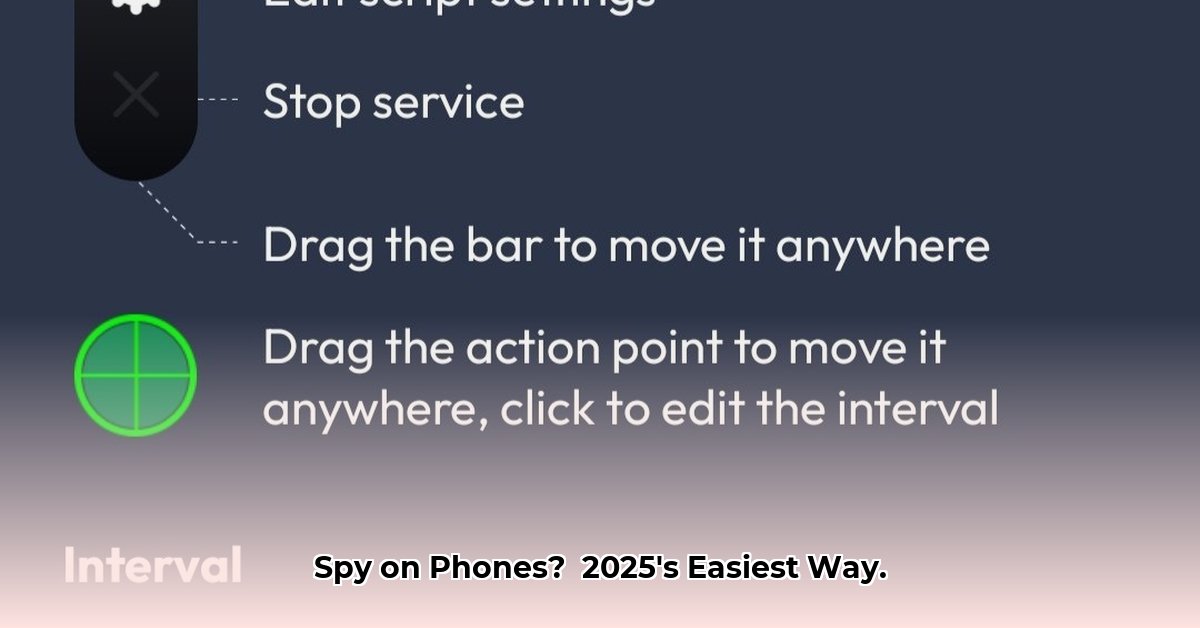
Auto-clickers, often called "phone tappers," automate repetitive taps on your phone screen. This guide compares hardware and software auto-clickers, offering setup instructions and crucial security advice. Whether you're a gamer, a social media manager, or simply seeking efficiency, understanding the nuances of these tools is key.
Hardware Auto-Clickers: Reliability Meets Simplicity
Hardware auto-clickers are physical devices that connect to your phone, offering consistent performance and lower detection risk. They’re ideal for tasks requiring numerous repetitive clicks, such as marathon gaming sessions. However, their functionality is limited to pre-programmed settings.
Pros:
- Unwavering Reliability: Consistent clicking, ideal for lengthy tasks.
- Reduced Detection Risk: Less likely to trigger anti-cheat mechanisms.
- Effortless Setup: Minimal technical skills required.
Cons:
- Limited Customization: Pre-programmed settings restrict advanced customization.
- Higher Cost: More expensive than software alternatives.
How to Use a Hardware Auto-Clicker:
- Connect the Device: Connect the auto-clicker to your phone via USB or Bluetooth.
- Configure Settings: Adjust clicking speed and other parameters as allowed.
- Launch Application: Open the target app or game.
- Activate the Auto-Clicker: Initiate automated clicks.
- Disconnect Safely: Power down and disconnect the device when finished.
Software Auto-Clickers: Customization and Risk
Software auto-clickers, such as AnkuLua, MacroDroid, and Automate, offer extensive customization. They allow complex sequences of taps and actions, automating intricate workflows. However, they pose a greater risk of detection and potential malware.
Pros:
- Extensive Customization: Create highly specific and complex automation sequences.
- Applicability Versatility: Use across many apps and games.
- Pricing Variety: Wide range of free and paid options.
Cons:
- Significant Security Risks: Potential for malware, account bans, and app detection.
- Variable Learning Curve: Ease of use varies greatly among apps.
- Compatibility Issues: Possible compatibility problems across devices and Android versions.
How to Use a Software Auto-Clicker (Example: MacroDroid):
- Download and Install: Obtain the app from a reputable source like the Google Play Store.
- Create a Macro: Define actions, including tap locations and timing delays.
- Set Triggers: Specify when the macro should activate (e.g., app launch, specific time).
- Test Thoroughly: Test and refine the macro to ensure functionality.
- Activate the Macro: Initiate automation when needed.
Auto-Clicker Showdown: Hardware vs. Software
| Feature | Hardware Auto-Clicker | Software Auto-Clicker |
|---|---|---|
| Reliability | Excellent | Variable |
| Customization | Limited | Extensive |
| Security Risk | Low | High |
| Cost | Higher | Lower (often freemium) |
| Ease of Use | Easy | Varies |
| Flexibility | Low | High |
Mitigating Risks: A Proactive Approach
Software auto-clickers present higher risks. To mitigate these:
- Source Verification: Only download from trusted app stores.
- Review Scrutiny: Check reviews for reports of malware or detection issues.
- Permission Management: Grant only essential permissions.
- Antivirus Protection: Maintain a reliable and updated antivirus app.
- Cautionary Approach: If something seems suspicious, it probably is.
Conclusion: Choosing the Right Tool
The "best" auto-clicker depends on your priorities. Hardware offers reliability and stealth, while software provides unparalleled customization but introduces greater risk. Prioritize security and ethical usage. Remember, the responsible use of these tools is paramount. Make informed choices and enjoy the benefits of automation while minimizing potential downsides.
⭐⭐⭐⭐☆ (4.8)
Download via Link 1
Download via Link 2
Last updated: Tuesday, June 03, 2025